
How to Create Professional Invoices with Prefilled Client Details?
You’re creating an invoice for your biggest client. You open your template. Now you’re typing their company name. Then their address. Then their contact person. Then their email. Then you’re double-checking you spelled everything right because last time you sent an invoice to “Acme Corpration” instead of “Acme Corporation.”
This happens every single time you invoice this client. You’ve billed them 47 times. You’ve typed their company details 47 times. Your fingers know the routine by heart.
There’s a better way. Professional invoices with prefilled client details mean you click the client’s name once and everything auto-populates. Company name, billing address, contact person, payment terms, tax rates. All of it. No typing. No checking for typos. No wondering if they’re at “123 Main Street” or “123 Main St.”
Here’s how to set this up so you never manually type client details on an invoice again.
Why Manual Invoice Creation Wastes Your Time?
Every invoice you create manually follows the same painful routine. Open your invoice template (Word doc, Excel sheet, or whatever you’re using). Type the client’s company name carefully. Copy their billing address from the last invoice you sent them. Add their contact person’s name and email. Set their payment terms (Net 30? Net 15? You need to check your contract). Add your services, calculate totals, apply their tax rate if applicable.
For one client, this takes 5-10 minutes. Annoying but manageable. For an agency invoicing 20 clients monthly, that’s 100-200 minutes every month spent typing information you already have. That’s 20-40 hours per year copying and pasting data.
The worst part? You make mistakes. You type “Development Services” when they prefer “Software Development.” You forget they’re tax-exempt. You use the wrong billing address because they moved offices three months ago. Each mistake means sending a revised invoice and looking unprofessional.
Professional invoices with prefilled client details solve this entire problem. You set up each client once with all their information. Every future invoice pulls that data automatically. No typing. No errors. No wasted time.
What “Prefilled Client Details” Actually Includes?
When people talk about professional invoices with prefilled client details, they mean more than just the company name. A truly prefilled invoice includes everything specific to that client so you’re not filling out the same fields repeatedly.
- Client identification: Company name, client contact person, job title, email address, phone number. All stored once, used on every invoice.
- Billing information: Complete billing address, alternate shipping address if different, tax ID or VAT number if they’re a business, tax exemption status if applicable.
- Payment terms: Net 30, Net 15, Due on receipt, or whatever terms you negotiated. The system remembers so you don’t bill Client A with Net 15 terms when they have Net 30 in their contract.
- Pricing agreements: If Client B always gets billed at $125/hour for development and $90/hour for design, that’s stored in their profile. Their invoices auto-apply these rates.
- Tax settings: Client C is in California and pays 9.5% sales tax. Client D is in Oregon with no sales tax. Client E is international with VAT. Each client’s tax configuration applies automatically.
- Currency preferences: Client F pays in USD, Client G pays in EUR, Client H pays in GBP. Invoices are generated in the correct currency without you selecting it each time.
- Invoice customization: Client I requires PO numbers on all invoices. Client J needs invoices in PDF format only. Client K wants NET-30 written on the invoice explicitly. These preferences store in their profile.
When you create an invoice for Client A, all of Client A’s specific details fill automatically. You just add the line items (what you’re billing for) and send. Everything else is already there.
How to Set Up Professional Invoices with Prefilled Client Details?
The setup process is straightforward once you’re using proper invoicing software instead of manual templates. Here’s exactly how it works:
- Step 1: Create the client profile once. Open your invoicing system and add a new client. Enter their complete information: company name, billing contact, email, phone, complete billing address, payment terms, tax settings, default billing rates if applicable. This takes 3-5 minutes the first time.
- Step 2: Set payment and tax preferences. Configure their specific payment terms (Net 30, Net 15, etc.), tax rate or tax-exempt status, preferred currency, and any custom invoice requirements like PO numbers or specific formats.
- Step 3: Save the client profile. All this information now lives in their client record. You never type it again.
- Step 4: Create invoices instantly. When you need to invoice Client A, you click “New Invoice,” select “Client A” from your client list, and watch every field auto-populate. Company name appears. Billing address fills in. Payment terms set to their default. Tax rate applies automatically. Currency is correct.
- Step 5: Add line items and send. The only manual work is adding what you’re actually billing for this period. “Web Development: 40 hours @ $125/hour = $5,000.” Review the professional invoice with prefilled client details and send it
The entire process from “I need to invoice Client A” to “Invoice sent” takes under 2 minutes. Compare that to 10 minutes of manual data entry.
Real Example: Agency Invoicing 15 Clients Monthly
Let’s look at a real marketing agency handling multiple clients with different requirements.
1. Manual Invoice Creation (The Old Way)
Client B – E-commerce Brand: Net 15 terms, tax-exempt (resale certificate), bills at flat $5,000/month retainer. Open template. Type “Riverside Commerce LLC.” Find their billing address. Type contact “Michael Chen, CEO, mchen@riverside.com.” Set Net 15 terms. Remember they’re tax-exempt. Add retainer line item. No tax calculation needed. Save. Send.
Time per invoice: 7 minutes.
Client B – E-commerce Brand: Net 15 terms, tax-exempt (resale certificate), bills at flat $5,000/month retainer. Open template. Type “Riverside Commerce LLC.” Find their billing address. Type contact “Michael Chen, CEO, mchen@riverside.com.” Set Net 15 terms. Remember they’re tax-exempt. Add retainer line item. No tax calculation needed. Save. Send.
Time per invoice: 7 minutes.
Client C – International Client: Net 30 terms, invoices in EUR, 21% VAT, bills at €120/hour. Open template. Type “Europan Digital GmbH.” Find German address and format it correctly. Type “Klaus Hoffman, Project Manager, k.hoffman@europan.de.” Remember to change currency to EUR. Set 21% VAT for Germany. Add services with EUR symbol. Calculate with VAT. Save. Send.
Time per invoice: 10 minutes (international formatting is complicated).
You have 15 clients. Some invoices take 6 minutes, some take 10 minutes. Average 8 minutes per client. That’s 120 minutes (2 hours) monthly just typing information you already have. That’s 24 hours annually.
2. Professional Invoices with Prefilled Client Details (The New Way)
Client A – Tech Startup: Click “New Invoice.” Select “TechVenture Inc.” from dropdown. Company name appears. Sarah Johnson’s contact details fill automatically. Billing address populates. Payment terms set to Net 30 automatically. Tax rate shows 8.5%. Add line items: “Strategy: 20 hours, Execution: 30 hours.” System applies stored rates ($150 and $100). Tax calculates automatically. Review and send.
Time per invoice: 2 minutes.
Client B – E-commerce Brand: Click “New Invoice.” Select “Riverside Commerce LLC.” All details prefill. Payment terms already Net 15. Tax shows “Exempt” automatically. Add “Monthly Retainer: $5,000.” Review and send.
Time per invoice: 90 seconds.
Client C – International Client: Click “New Invoice.” Select “Europan Digital GmbH.” German address prefills correctly. Klaus Hoffman’s details appear. Currency automatically EUR. VAT set to 21%. Add “Consulting: 35 hours.” System applies €120/hour rate. VAT calculates automatically. Review and send.
Time per invoice: 2 minutes.
Same 15 clients. Average 2 minutes per invoice now. That’s 30 minutes monthly instead of 120 minutes. You just saved 90 minutes per month, 18 hours annually.
Time Savings Comparison Table
Here’s exactly how much time you save with professional invoices with prefilled client details:
| Monthly Clients | Manual Process (8 min/invoice) | Prefilled Details (2 min/invoice) | Monthly Savings | Annual Savings | Cost Savings ($125/hr) |
|---|---|---|---|---|---|
| 5 clients | 40 minutes | 10 minutes | 30 minutes | 6 hours | $750 |
| 10 clients | 80 minutes | 20 minutes | 60 minutes | 12 hours | $1,500 |
| 15 clients | 120 minutes | 30 minutes | 90 minutes | 18 hours | $2,250 |
| 20 clients | 160 minutes | 40 minutes | 120 minutes | 24 hours | $3,000 |
| 30 clients | 240 minutes | 60 minutes | 180 minutes | 36 hours | $4,500 |
These numbers assume 8 minutes for manual invoice creation and 2 minutes with prefilled details. Your actual times may vary, but the ratio stays consistent.
Tools That Create Professional Invoices with Prefilled Client Details
1. Tymora: Best for Agencies Billing by Time
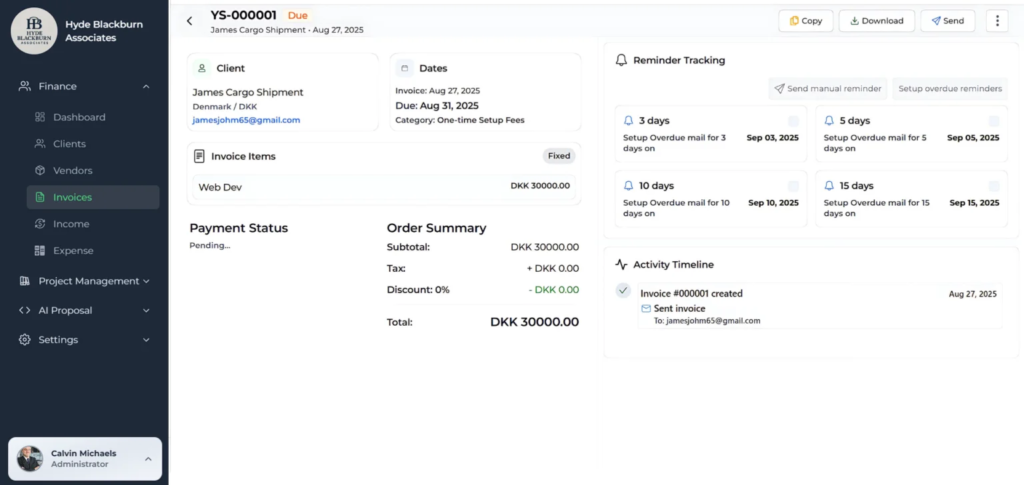
Complete client profile system stores all details including custom billing rates per team member. When you generate invoices from approved timesheets, client details prefill automatically along with all billable hours. Pricing: $35/month for 10 users. Built specifically for agencies that need professional invoices with prefilled client details plus time tracking.
Read our Blog on “Create Invoices in Minutes with Tymora“
2. QuickBooks: Best for Full Accounting Integration
Robust client database with complete billing information, payment terms, tax settings. Creating professional invoices from stored client profiles is straightforward. QuickBooks remembers everything. Pricing: $30-200/month depending on plan. Overkill if you only need invoicing, perfect if you need full accounting.
3. FreshBooks: Best for Simple, Beautiful Invoices
Clean interface makes setting up client profiles easy. Creating professional invoices with prefilled client details is intuitive. Good for service businesses that prioritize aesthetics and client experience. Strong mobile app for invoicing on the go. Automated payment reminders help you get paid faster. Pricing: $17-55/month depending on client volume. Limited project management features compared to Tymora. No built-in time tracking integration for agencies billing hourly.
4. Zoho Invoice: Best Free Option
Free plan supports up to 1,000 invoices annually with full client profile features. You can create professional invoices with prefilled client details without paying anything. Good for startups and small businesses watching every dollar. Integrates with other Zoho products if you’re already in their ecosystem. Paid plans start at $10/month for unlimited invoices and additional features. Interface isn’t as polished as competitors like FreshBooks. Mobile app works but feels dated compared to modern alternatives.
5. Wave: Completely Free Accounting Software
Free invoicing with client profiles and prefilled details. Makes money through payment processing fees (2.9% + $0.60 per credit card transaction), not subscriptions. Good option if free matters more than advanced features. Includes basic accounting, receipt scanning, and expense tracking beyond just invoicing. No time tracking or project management features. Perfect for solo freelancers or service providers with simple needs. If you let clients pay outside Wave (checks, direct bank transfers), you keep 100% and Wave makes nothing.
The right choice depends on what else you need. If you’re only invoicing, FreshBooks or Wave works fine. If you need time tracking that flows into invoices, Tymora makes sense. If you need full accounting, QuickBooks wins.
Common Mistakes When Setting Up Prefilled Invoice Systems
- Mistake 1: Incomplete client profiles. You set up the client with just their name and email. Later you’re still typing their address on every invoice. Set up the complete profile once: billing address, payment terms, tax settings, contact details, everything. Spend 5 minutes now to save hours later.
- Mistake 2: Not updating client information. Client moved offices six months ago. You’re still using the old address because you never updated their profile. Make client profile updates part of your process when clients notify you of changes.
- Mistake 3: Inconsistent data entry. You enter Client A as “Acme Corp” one time and “Acme Corporation” another time. Now you have duplicate client profiles. Establish naming conventions and stick to them.
- Mistake 4: Forgetting tax settings. You set up the client profile but don’t configure their tax rate. Every invoice still requires manual tax calculation. Configure tax settings in the client profile so invoices calculate correctly automatically.
- Mistake 5: Not setting default payment terms. You leave payment terms blank in the client profile. Every invoice requires you to manually select Net 30 or whatever terms apply. Set default payment terms in each client’s profile.
- Mistake 6: Skipping custom fields for special requirements. Client X requires PO numbers on all invoices. You remember this manually each time. Most systems let you add custom fields to client profiles for requirements like this. Use them.
- Mistake 7: Using templates instead of proper software. Word or Excel templates can’t store client data that auto-populates. You’re still manually typing everything. Invest in actual invoicing software even if it’s a free option like Wave
What Your Professional Invoices Should Include?
Beyond prefilled client details, your invoices need specific elements to look professional and get paid faster:
- Your business information clearly displayed. Company name, address, contact information, logo if you have one. Tax ID or business registration number. This appears automatically on every invoice.
- Unique invoice number. Sequential numbering (INV-001, INV-002, etc.) for tracking and accounting. Good software auto-generates these.
- Invoice date and due date. When the invoice was created and when payment is expected. Due date calculates automatically based on client’s payment terms.
- Itemized services or products. Clear description of what you’re billing for. “Web Development: 40 hours @ $125/hour = $5,000” is better than “Services rendered: $5,000.”
- Subtotal, tax, and total. Break down the math clearly. Show subtotal before tax, tax amount, and final total. Prefilled tax settings calculate this automatically.
- Payment instructions. Bank details for wire transfers, credit card payment link, check mailing address, or whatever payment methods you accept.
- Payment terms. Net 30, Net 15, or due on receipt. Late payment fees if applicable. This pulls from client’s stored payment terms.
- Professional design. Clean layout, readable fonts, proper spacing. Your logo and brand colors if applicable. Most software provides professional templates.
The client details section (company name, billing address, contact person) prefills from their stored profile. You just add the line items for this specific invoice.
Time Tracking Integration with Professional Invoices
If you bill by the hour, the best systems connect time tracking directly to professional invoices with prefilled client details. Here’s how this works:
Your team tracks time on projects throughout the week. Developer A logs 32 hours on Client X’s project. Designer B logs 18 hours. At week end, you approve their timesheets. Now you create Client X’s invoice.
You click “New Invoice” and select Client X. All their details prefill automatically (company name, billing address, payment terms, tax rate). Then you click “Import from Timesheets.” The system pulls all approved hours: Developer A’s 32 hours at $125/hour = $4,000, Designer B’s 18 hours at $90/hour = $1,620.
Subtotal: $5,620. Tax applies automatically based on Client X’s stored tax rate. Total appears. You review the professional invoice with prefilled client details and send it. Total time: 2 minutes.
This is where Tymora excels. Time tracking feeds directly into professional invoices with all client details prefilled. One system, one workflow, no manual data transfer.
International Clients and Multi-Currency Professional Invoices
Creating professional invoices with prefilled client details gets more complicated with international clients. You need currency conversion, different tax rules (VAT vs sales tax), and proper address formatting.
- Currency management: Set each client’s preferred currency in their profile. UK client invoices in GBP, German client in EUR, Canadian client in CAD. When you create their invoice, it generates in their currency automatically. You’re not manually switching currency symbols.
- VAT and international tax: European clients need VAT on invoices (usually 20-25% depending on country). US clients need sales tax (varies by state). Some countries have GST. Configure the correct tax type and rate in each client’s profile. Their invoices apply the right tax automatically.
- Address formatting: US addresses look different from UK addresses which look different from Japanese addresses. Store the complete, properly formatted address in the client profile once. Every invoice uses it correctly.
- Exchange rates: If you invoice in USD but client pays in EUR, you need exchange rate tracking. Some systems handle this automatically, others require manual entry. Set your preference in the client profile.
Good invoicing software handles all this through client profiles. You set up the German client with EUR currency and 19% VAT once. Every invoice they receive is in EUR with correct VAT. You don’t think about it.
Stop Typing Client Information on Every Invoice
You’ve billed Client A forty-seven times. You’ve typed their company name forty-seven times. Copied their address forty-seven times. Selected their payment terms forty-seven times. Set their tax rate forty-seven times. Your fingers are tired. Your patience is gone. And last week you typed “Acme Corporation” instead of “Acme Corporation” and had to send a corrected invoice.
Professional invoices with prefilled client details eliminate this entire frustration. Set up each client once with their complete information. Every future invoice pulls that data automatically in seconds. When a 15-client agency switches from manual invoice creation to professional invoices with prefilled client details, they save 18 hours annually. That’s $2,250 worth of time at $125/hour. You could bill those hours to clients or finally take a vacation.
Ready to stop typing the same client information repeatedly? Start your free 14-day trial of Tymora and experience professional invoices with prefilled client details. No credit card required. Set up your clients once with all their billing information, payment terms, and tax settings. Create your next invoice in 2 minutes instead of 10.
Start Your Free Trial and create professional invoices with prefilled client details automatically.
The right system doesn’t just make invoicing faster. It eliminates repetitive data entry entirely. Set up client profiles once, create professional invoices instantly forever. If you’re still typing client details on every invoice, you’re using the wrong tool.
1. How long does it take to set up client profiles for professional invoices with prefilled client details?
Initial setup takes 3-5 minutes per client. You’re entering their complete information once: company name, billing address, contact person, payment terms, tax settings, and any special requirements. After setup, every invoice takes 2 minutes instead of 8-10 minutes. For 10 clients, you spend 30-50 minutes on setup and save 60+ minutes monthly forever.
2. Can I edit client details after setting them up for professional invoices?
Yes, client profiles are editable anytime. If a client moves offices, changes contact person, or updates their tax status, you edit their profile once. All future invoices use the updated information automatically. Past invoices remain unchanged unless you regenerate them.
3. What happens if a client needs different payment terms for a specific invoice?
Most systems let you override stored defaults for individual invoices. Client A normally has Net 30 terms, but this particular project requires Net 15. Create their invoice using prefilled details, then manually change payment terms just for this invoice. Their profile still defaults to Net 30 for future invoices.
4. Do professional invoices with prefilled client details work for recurring invoices?
Absolutely. Set up the client profile with all their details. Create a recurring invoice template (monthly retainer, subscription fee, etc.). The system generates their invoice automatically on schedule with all details prefilled. You just review and send, or set it to send automatically.
5. Can I import existing client data instead of manually entering it for professional invoices?
Most invoicing software supports importing client data from CSV files. Export your current client list from whatever system you’re using (Excel, old invoicing software, CRM). Format the CSV with required fields (company name, billing address, email, etc.). Import into new system. Client profiles populate automatically. Verify accuracy and start creating professional invoices with prefilled client details.
5. What if I need to create professional invoices for one-time clients?
You can still create client profiles for one-time projects. Setup takes 3 minutes, but you get a professional invoice with no typos and proper formatting. If they become repeat clients later, you already have their complete information. Some systems also support “quick invoices” for truly one-off situations without full client profile setup.
What's inside?
Customer Success Stories
See how agencies and freelancers are transforming their businesses with Tymora
Tymora has completely transformed how I manage my freelance business. From invoicing to tracking expenses, everything is streamlined and effortless.

Monowar Iqbal Layek
Freelancer
Managing my freelance work is so much easier with Tymora. Invoicing is fast, expense tracking is simple, and I feel more organized than ever.

Sandeep Acharya
Freelancer
Tymora made managing my freelance projects and finances seamless. The platform is intuitive, and support is always responsive and helpful.

Samsur Rahaman
Automation Framework Architect